Using v1.9.10 on Linux Mint 22.3, kernel 6.14.0
Despite setting "Orientation > Landscape" on the "Page Setup" dialog, it still outputs as portrait.
Steps:
1. File > Print
2. Click [Page setup...]
3. Under "Orientation" click "Portrait"
3. Click [OK] to close the dialog.
4. Click [Print].
The output is in portrait not landscape.
Print landscape still comes out portrait
Moderators: xnview, Dreamer
-
cday
- XnThusiast
- Posts: 4619
- Joined: Sun Apr 29, 2012 9:45 am
- Location: Cheltenham, U.K.
Re: Print landscape still comes out portrait
In the preceding Print dialog, you don't have Automatically rotate (if needed) selected, do you?
Just checking in case that might possibly be a factor.
Just checking in case that might possibly be a factor.
-
IronRod
- Posts: 3
- Joined: Sat Feb 07, 2026 3:55 pm
Re: Print landscape still comes out portrait
No, Automatically rotate is not checked. I have attached screen shots. And I just updated to the most recent v1.10.5
1.10.5
In the XnViewMP Print dialog, I have selected "Page Setup" and set to "Landscape". However, when I click [Print] and it brings up the system print dialog, I have to again select the paper size there by going to properties. In any case, none of this changes that it comes out as portrait not landscape.
If I open the image with the Document Viewer (Xviewer), it prints as expected without issue.
1.10.5
In the XnViewMP Print dialog, I have selected "Page Setup" and set to "Landscape". However, when I click [Print] and it brings up the system print dialog, I have to again select the paper size there by going to properties. In any case, none of this changes that it comes out as portrait not landscape.
If I open the image with the Document Viewer (Xviewer), it prints as expected without issue.
You do not have the required permissions to view the files attached to this post.
-
printersolved
- Posts: 1
- Joined: Thu Oct 22, 2026 8:32 am
Re: Print landscape still comes out portrait
This one usually isn't XnView ignoring you. On Linux the orientation gets set in three places, and the last one wins: XnView's Page Setup, the GTK/Qt system print dialog that opens after you click Print, and the CUPS defaults for the queue.
A few things worth trying, in this order:
1. In the system print dialog that opens after XnView's, open the Page Setup tab and set Orientation to Landscape there as well. If that dialog says Portrait, it overrides XnView's setting.
2. Check the queue default from a terminal: lpoptions -p YOUR_PRINTER -l | grep -i orient. If it shows a forced portrait default, clear it with lpoptions -p YOUR_PRINTER -o orientation-requested=4 (4 is landscape) for a test, then remove it again with lpoptions -p YOUR_PRINTER -r orientation-requested so other apps aren't affected.
3. Turn off any "auto-rotate" or "fit to page" option in the driver properties (not only in XnView). Some drivers rotate a landscape image back to portrait to fill the sheet.
4. To see where it goes wrong, print to a PDF file with the same settings. If the PDF is landscape, the problem is in the printer driver or queue. If the PDF is portrait, it is the dialog handoff.
5. If you use the Flatpak build, try the .deb or AppImage once. The Flatpak goes through the portal print dialog, and that has had orientation bugs.
If the PDF test comes out correctly, re-adding the printer in CUPS with the "driverless/IPP Everywhere" option instead of the vendor PPD often fixes the rotation for good.
If the printer itself keeps ignoring orientation, I keep a few Canon driver notes at Printer Solved.
A few things worth trying, in this order:
1. In the system print dialog that opens after XnView's, open the Page Setup tab and set Orientation to Landscape there as well. If that dialog says Portrait, it overrides XnView's setting.
2. Check the queue default from a terminal: lpoptions -p YOUR_PRINTER -l | grep -i orient. If it shows a forced portrait default, clear it with lpoptions -p YOUR_PRINTER -o orientation-requested=4 (4 is landscape) for a test, then remove it again with lpoptions -p YOUR_PRINTER -r orientation-requested so other apps aren't affected.
3. Turn off any "auto-rotate" or "fit to page" option in the driver properties (not only in XnView). Some drivers rotate a landscape image back to portrait to fill the sheet.
4. To see where it goes wrong, print to a PDF file with the same settings. If the PDF is landscape, the problem is in the printer driver or queue. If the PDF is portrait, it is the dialog handoff.
5. If you use the Flatpak build, try the .deb or AppImage once. The Flatpak goes through the portal print dialog, and that has had orientation bugs.
If the PDF test comes out correctly, re-adding the printer in CUPS with the "driverless/IPP Everywhere" option instead of the vendor PPD often fixes the rotation for good.
If the printer itself keeps ignoring orientation, I keep a few Canon driver notes at Printer Solved.
-
IronRod
- Posts: 3
- Joined: Sat Feb 07, 2026 3:55 pm
Re: Print landscape still comes out portrait
Thank you. Interestingly, it worked this time though I changed nothing in steps I did before. Maybe something in the latest update -- there have been several since I first reported this. But, also, I had removed the original system-added printer and added it myself manually (to address another issue). So, maybe that is the reason.
Just for information, the steps I took this time (and the times before):
1. Click File > Print in XnView.
2. In the "Print" dialog, click [Page setup...]
3. Set Orientation:landscape
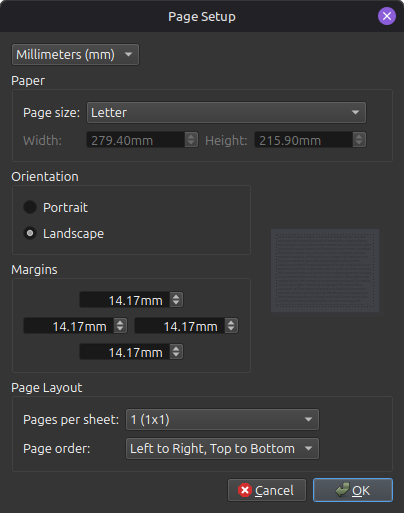 )
)
4. Click [OK]
5. In the "Print" dialog, click [Print]. This brings up the system printer dialog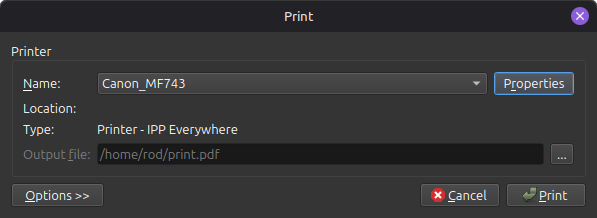 .
.
Note that it is set up as IPP. I don't use the vendor driver.
6. In the "Print" dialog, click [Properties].
7. Confirm Orientation:Landscape.
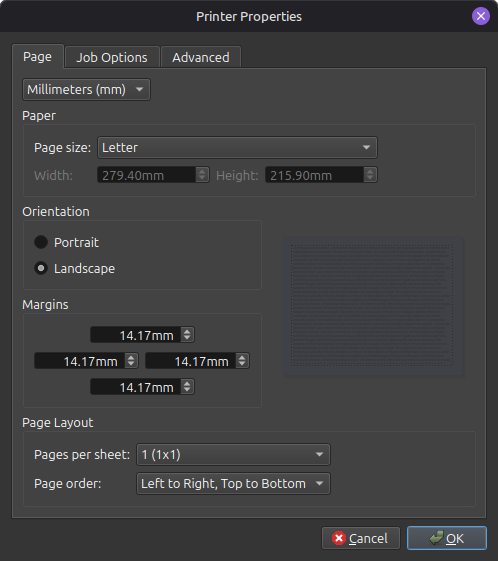 .
.
NOTE: I do not have to change this, it comes up showing this correct setting.
8. Click [OK]
9. In the "Print" dialog, click [Print]
And this time it worked correctly. Again, these are the same steps I have taken before and it has not worked previously. But, between those efforts and this,
Just for information, the steps I took this time (and the times before):
1. Click File > Print in XnView.
2. In the "Print" dialog, click [Page setup...]
3. Set Orientation:landscape
)4. Click [OK]
5. In the "Print" dialog, click [Print]. This brings up the system printer dialog
.Note that it is set up as IPP. I don't use the vendor driver.
6. In the "Print" dialog, click [Properties].
7. Confirm Orientation:Landscape.
.NOTE: I do not have to change this, it comes up showing this correct setting.
8. Click [OK]
9. In the "Print" dialog, click [Print]
And this time it worked correctly. Again, these are the same steps I have taken before and it has not worked previously. But, between those efforts and this,